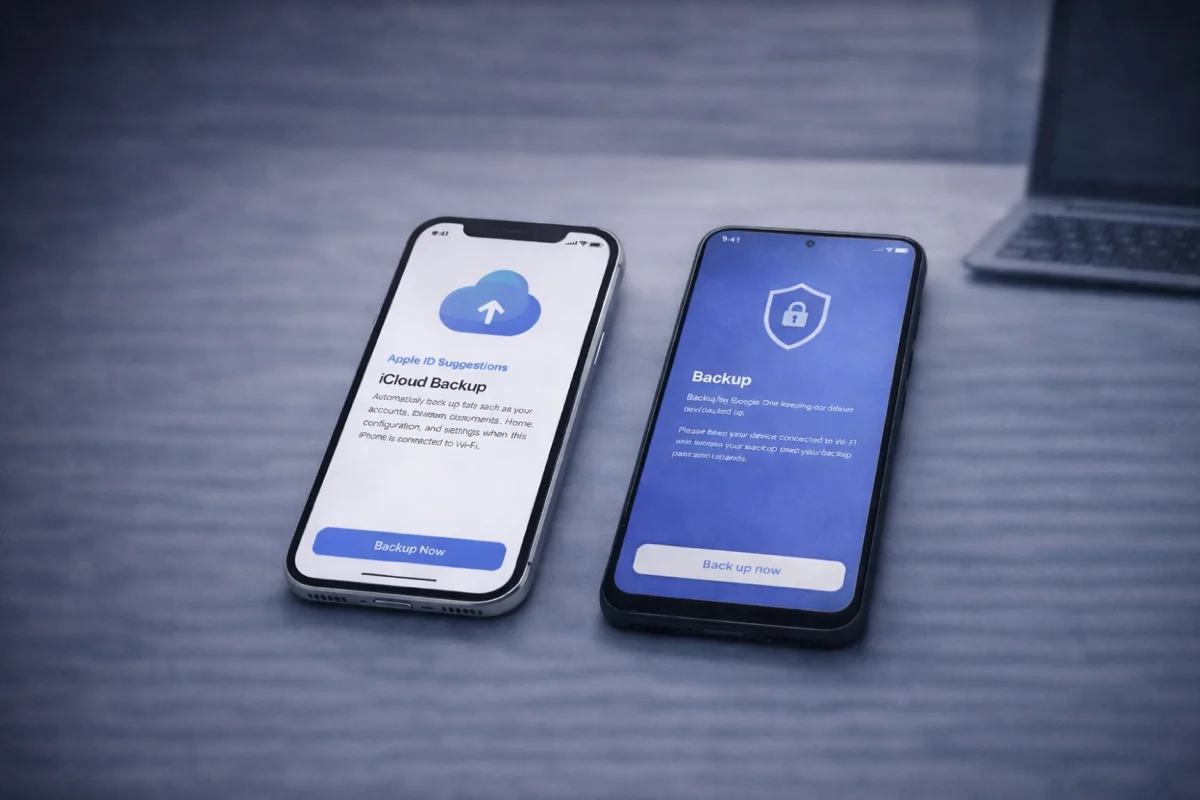
Sending your phone in for repair can feel stressful—especially if your device has your photos, messages, and accounts on it. The #1 thing you can do before any repair is simple: back up your data first.
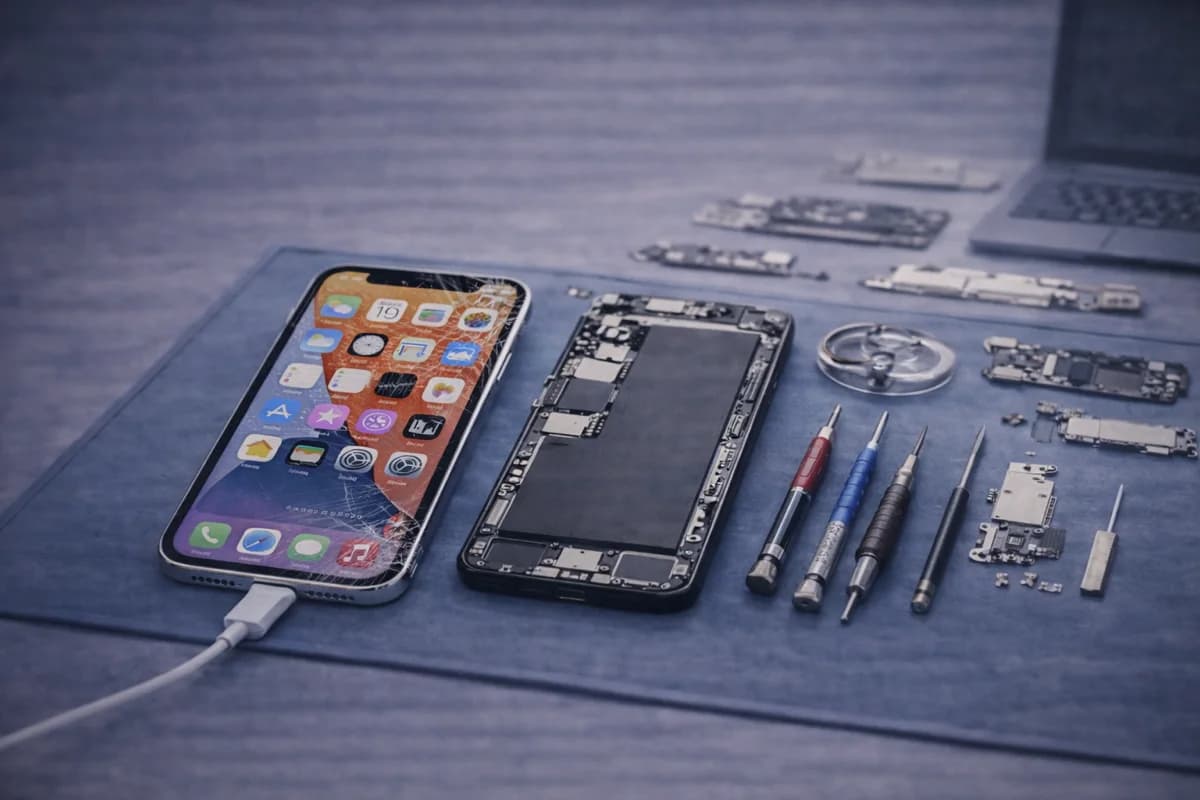
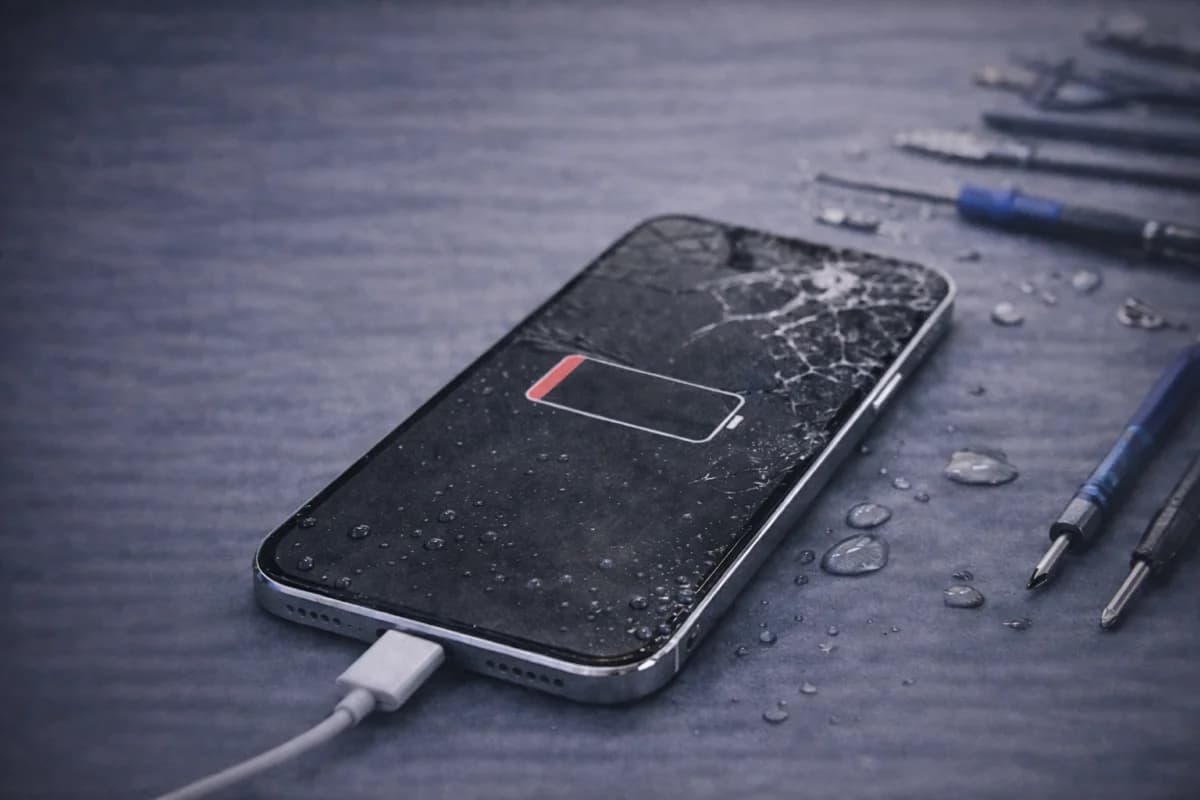
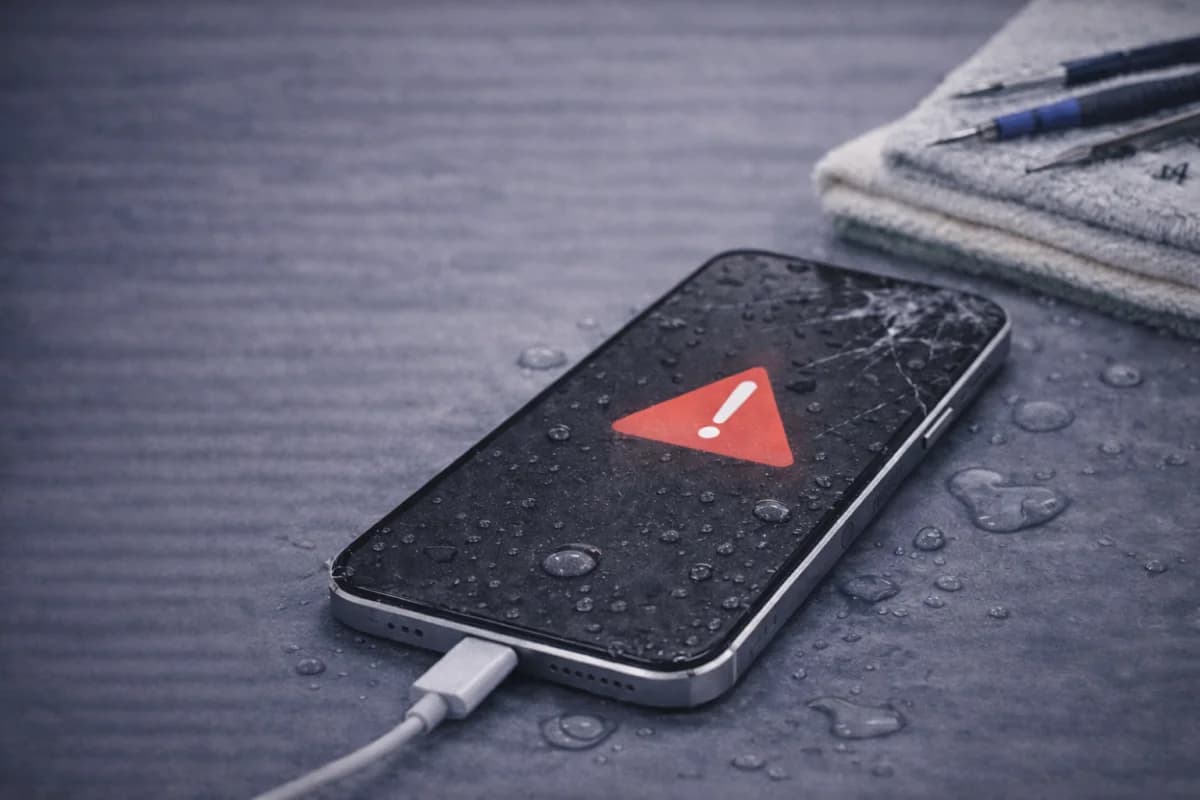
Most repairs don’t touch your data on purpose, but unexpected things can happen. Screens can fail completely, batteries can swell, software can glitch, and in rare cases a device needs a reset during troubleshooting. A backup makes sure you don’t lose what matters.
Why backing up matters before repairs
- Protects you from data loss: If something fails during diagnostics or a part issue happens, your photos and contacts are still safe.
- Speeds up your recovery: If you need a replacement device, you can restore everything fast.
- Gives you peace of mind: You don’t have to worry about losing years of memories.
- Improves privacy: You can remove sensitive access and still keep your info safe.
Quick checklist: do this before you drop off your phone
- ✅ Back up to cloud (iCloud or Google) or to a computer
- ✅ Verify the backup completed (don’t assume)
- ✅ Charge your phone (if possible) so backup doesn’t fail midway
- ✅ Save your passwords (password manager / keychain)
- ✅ Optional: log out of banking apps + remove work accounts if required
Backup methods (choose one)
Option A: Cloud backup (fastest for most people)
Cloud backup is the easiest because it runs automatically once enabled—great before repairs.
iPhone (iCloud Backup)
- Open Settings → tap your name → iCloud → iCloud Backup
- Turn it on (if it’s off)
- Tap Back Up Now
- Stay on Wi-Fi until it finishes
Android (Google One / Google Backup)
- Open Settings → Google → Backup (wording varies by phone)
- Turn on backup and tap Back Up Now
- Stay on Wi-Fi until it completes
Option B: Computer backup (best for a full copy)
A computer backup can be more “complete,” especially if you have lots of photos/videos or limited cloud storage.
iPhone to Mac/PC
- Connect the iPhone to your computer with a cable
- On Mac: open Finder → select your iPhone → choose Back up now
- On PC: use Apple Devices (newer Windows) or iTunes (older setups) → Back Up Now
Android to computer
- Use a USB cable and copy photos/videos to your computer
- For important folders, copy Documents/Downloads as well
- Some brands include a backup tool—use it if available
Option C: External drive backup (advanced)
This works well if you have huge files and don’t want cloud storage. It’s more manual, but very effective.
How to verify your backup actually worked
This step is huge—many “backups” fail silently due to low storage, no Wi-Fi, or account issues.
- iPhone: check the “Last successful backup” time in iCloud Backup settings.
- Android: check the backup status screen (Google Backup) and confirm it shows recent time/date.
- Computer backup: confirm the backup exists and has a recent timestamp.
Privacy: can technicians access my personal data?
A professional shop should minimize access and treat privacy seriously—but it’s smart to protect yourself anyway. Here’s what you can do:
- Use a passcode (don’t leave the phone unlocked)
- Remove sensitive accounts if your workplace requires it
- Turn off notifications on lock screen if you want extra privacy
- Back up first so you can safely reset if needed (rare cases)
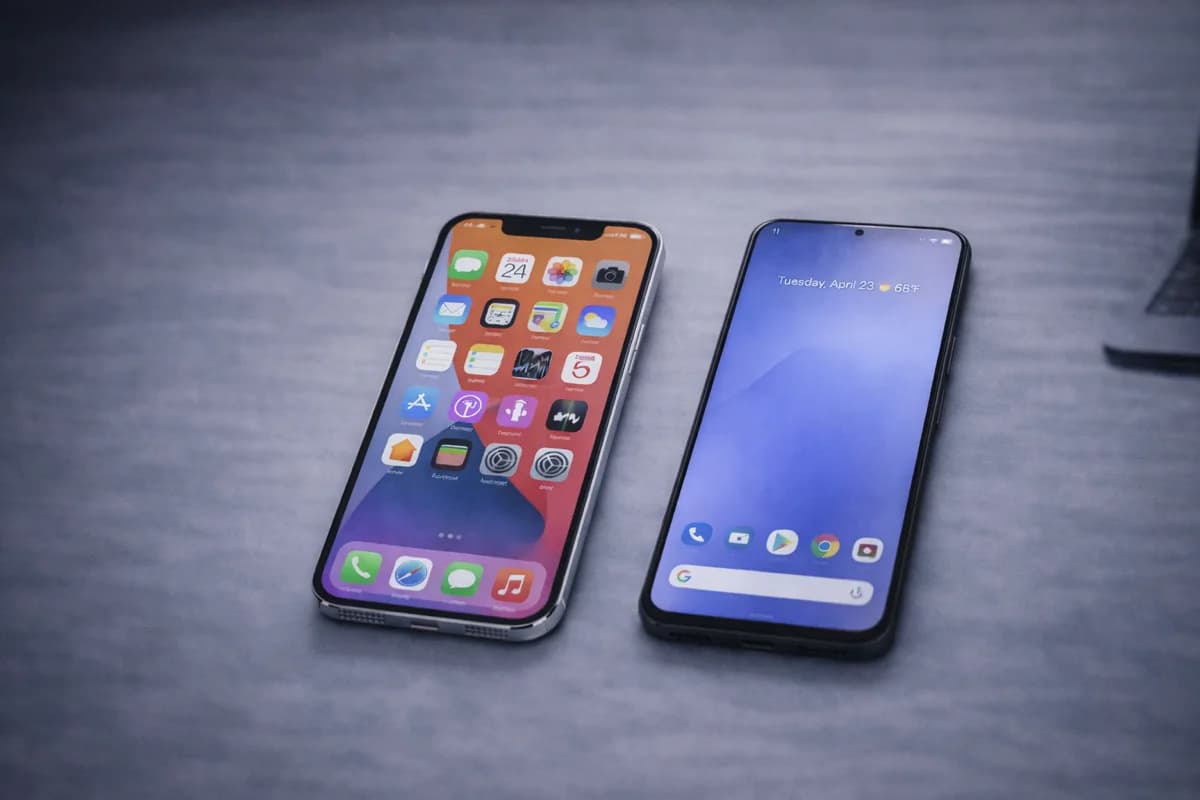
Related: if you’re comparing device repair differences, this post helps: iPhone vs Android Repairs: What’s Different?.
After the repair: how to restore your data
Once your phone is repaired (or if you end up upgrading to a newer model), restoring is usually straightforward:
- Cloud restore: sign in during setup and choose “Restore from iCloud/Google backup”
- Computer restore: connect to your computer and restore from your saved backup
Need phone repair in Houston?
If you need a screen, battery, charging port repair, or diagnostic in Houston, MacNDroid can help. We’ll tell you what’s wrong and what it’ll take to fix it—without guessing.
iPhone RepairSamsung RepairGet a PriceCall (346) 808-0948
FAQ
How often should I back up my phone?
At least weekly, and always before repairs, travel, major updates, or switching devices.
Can I back up my data if my phone is broken?
Sometimes, yes—depending on what’s broken. If the screen still works, do a cloud backup immediately. If the phone won’t boot or the display is dead, a repair shop may be able to help you recover data first.
How can I keep my backup secure?
Use encryption where available, enable two-factor authentication, and keep your device and apps updated. Avoid unknown “backup apps” from untrusted sources.
Can I restore my backup to a new phone later?
Yes. Cloud backups are designed for exactly that—moving to a replacement phone or upgrading to a newer model.
Note: This article is informational. Backup steps can vary slightly by device model and software version.